VizShelf
Notes · files · web · AI — in one place

Where every project
starts — and ends.

Notes, files, the web and AI belong together — in the one place your Mac should have had all along. ViPKM (Visual PKM) is that place: an outliner with tags and tasks, built-in readers for PDFs, web pages and videos, voice notes with on-device transcripts, Claude to ask about your notes, and AI flashcards that bring back what matters just before you would forget it.

See features

Offline-first — iCloud sync and Claude only when you turn them on · macOS 13 Ventura or later, Apple silicon · 11 languages · 14-day free trial · Windows, iPhone & iPad planned

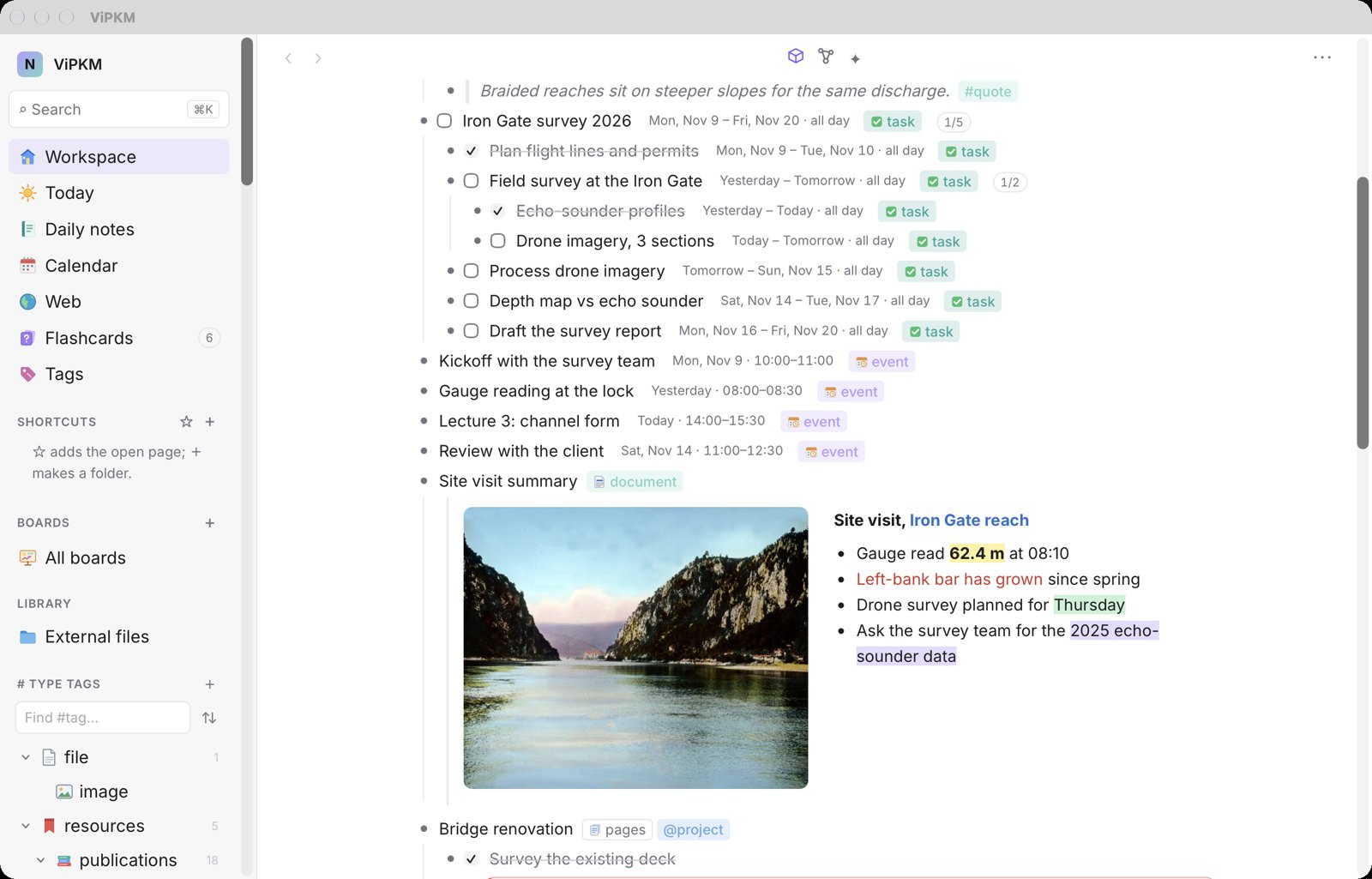
The workspace outline with a two-column block: a photo beside notes
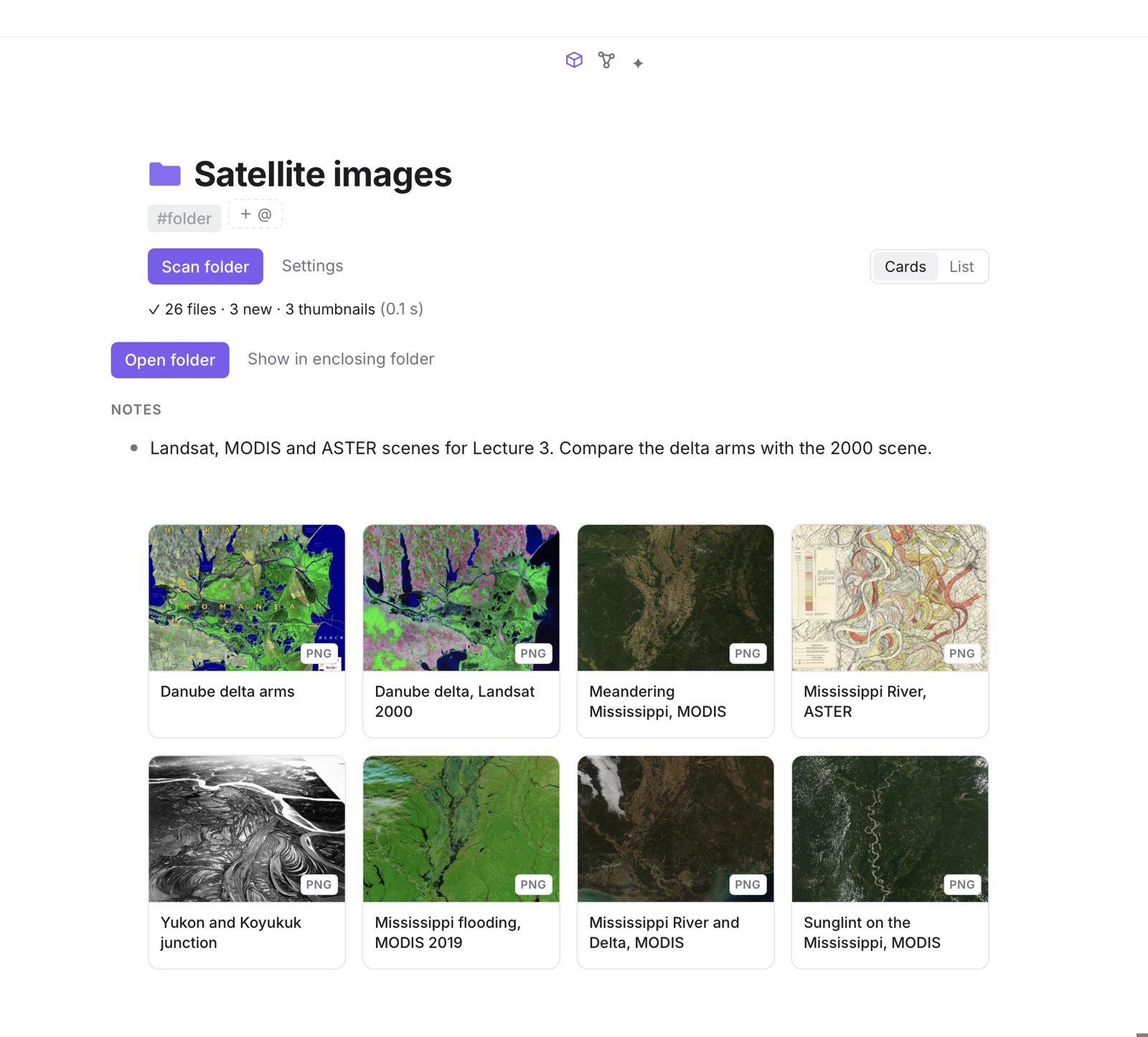
A folder from your drive as a gallery, with a note about the folder

Your own folders, browsed as galleries — with notes on every folder and file.

Your files, connected

Notes beside your files — not instead of them.

Most note apps only know what you put inside them. The documents your work actually depends on stay in folders the notes can't see, or have to be imported and copied.

ViPKM brings your own folder into the outline as it is. Every file gets a card and a page for notes, tags, tasks and links, and its quotes and figures become notes too. Scanning only reads your folder. The one change is one you ask for: PDF highlights are also written into the PDF, so other apps see them too.

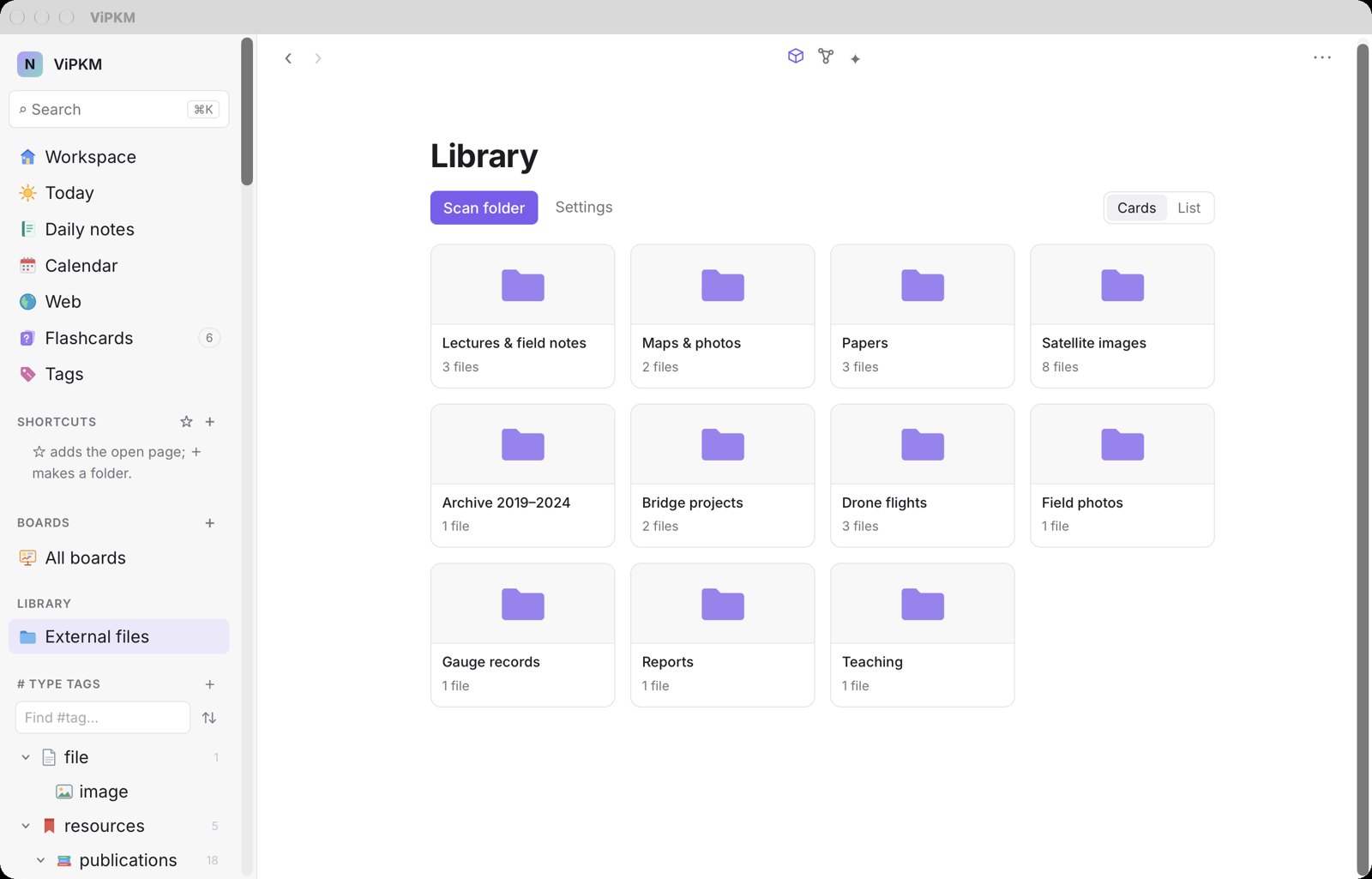
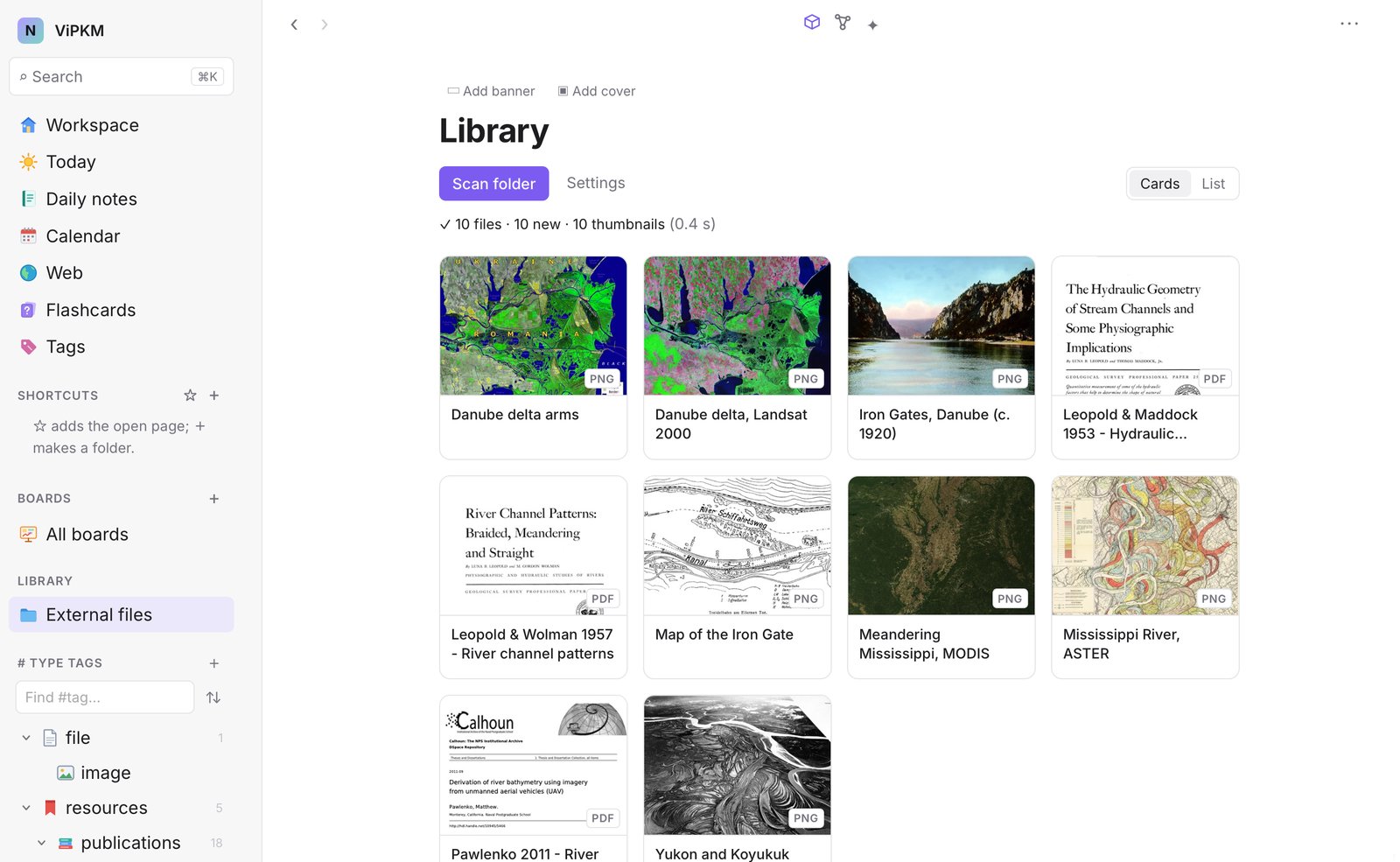
The library: your folders as cards
One connected system

From source to understanding, in one place

Reading, capturing, citing, thinking and remembering usually happen in separate tools that don't know about each other. Here they are one system: every capture is a node, linked to its exact source and to everything else you know.

Capture

Bring in a PDF, save a web page, open a video or record a voice note.

PDFWeb pageVideoAudio

Annotate

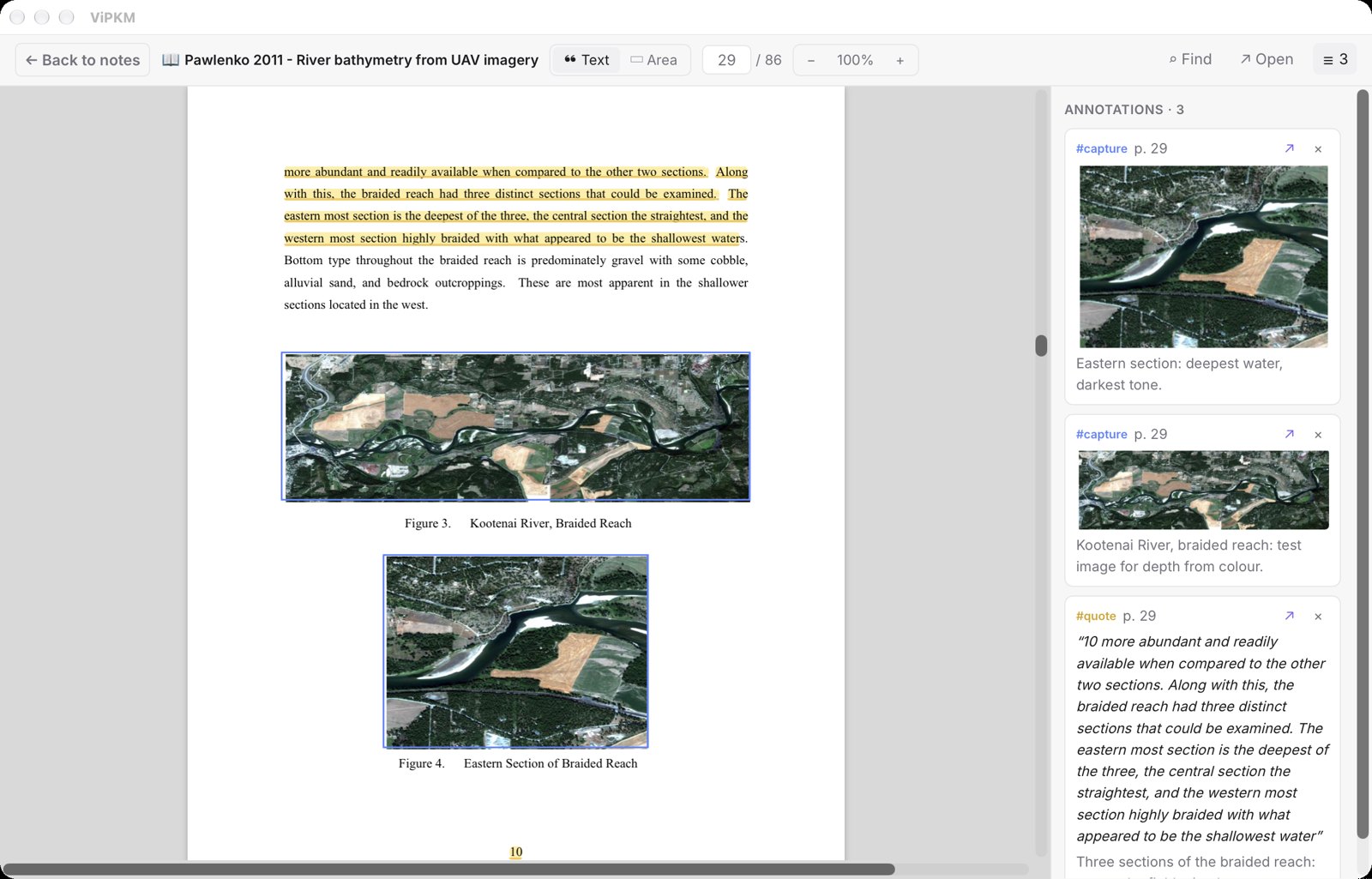
Quote text, clip a figure, grab a video frame at its timestamp. Each becomes a note.

QuoteClipFrame + timeTranscript

Reference

Every note keeps a link back to the exact page or moment, under a resource with full citation details.

ResourceDOIBibTeXPage / time

Connect

Tag it, link it, put it on a board or mind map beside other sources, and see it in the graph.

Tags@ linksBoardsGraph

Remember

Turn what matters into flashcards and review it just before you would forget.

FlashcardsFSRS

A quote you clip from page 42 is not a copy pasted into a document: it is a node that knows its paper, its page and its tags. Put it on a board next to a frame from a lecture video and a note from your daily page, and every piece still opens its source with one click.

Readers & capture

PDFs, web pages, video and audio — read and annotated right here

No more switching between a PDF viewer, a browser, a video player and a recorder. Each one is built in, and everything you mark becomes a note linked to the exact page, place or second it came from.

PDF reader with a highlighted quote, two clipped figures and the list of annotations
📄

PDF reader

  • Quote text, clip figures and tables as images
  • Highlights are also written into the PDF, so other apps see them
  • Find in the document; jump from any search result to its page
  • On-device OCR makes scanned PDFs searchable and quotable
  • Long books open at once and scroll smoothly
🌐

Web capture

  • Save any page with its address and thumbnail — under the line you came from, or in today's note
  • Zoom each site to a comfortable size; it is remembered
  • Highlight with comments; clip a region as an image
  • Highlights come back when you revisit the page
  • A browser bookmark sends the page you are reading straight in
  • Online PDFs go to your library in one click
🎬

Video & audio

  • Save online videos as notes with channel, date, duration and their transcript
  • Watch your own video files and grab frames with their timestamp; “play from this moment”
  • Record voice notes and lectures
  • Transcription runs on your Mac — nothing is uploaded
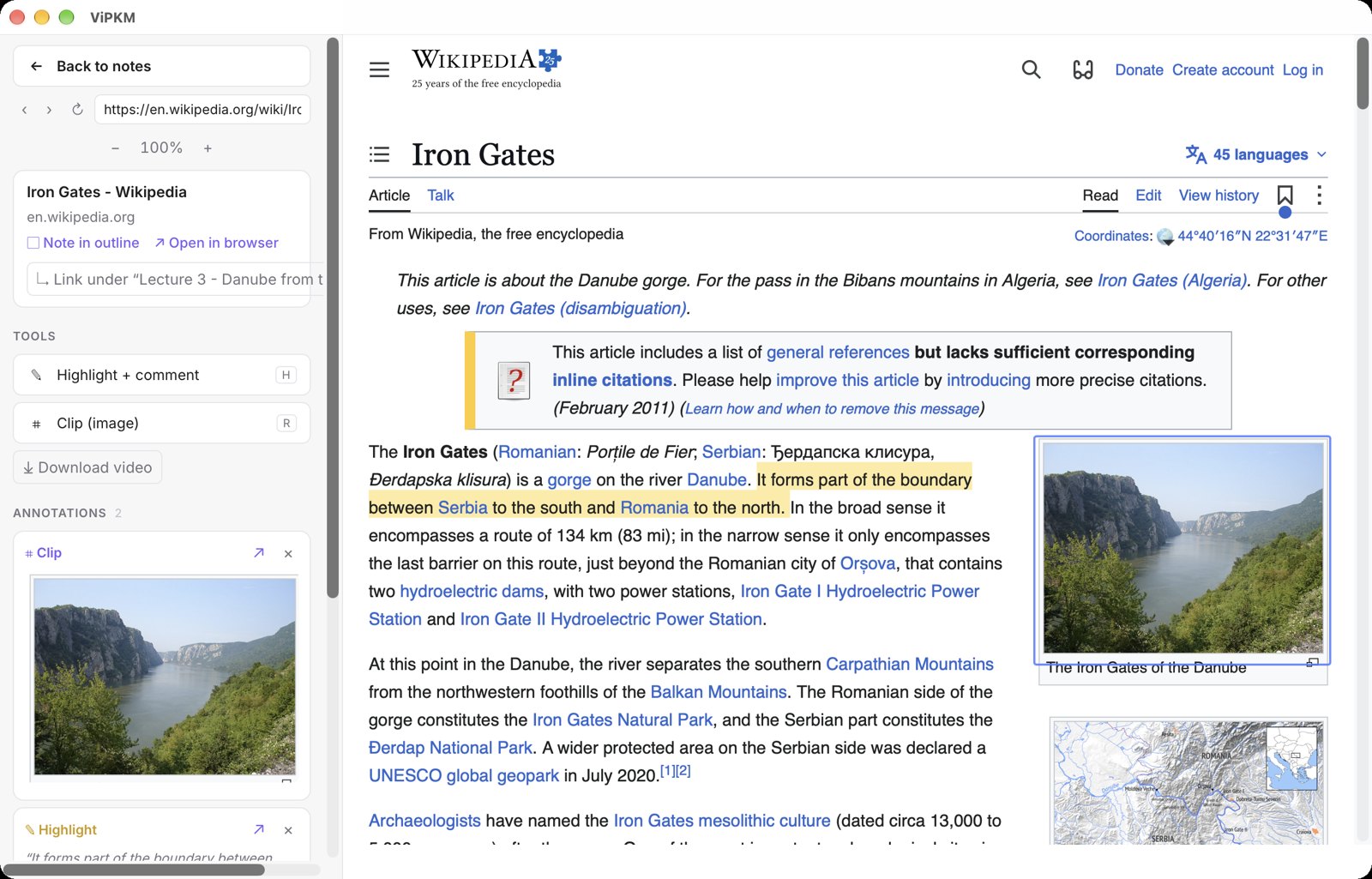
Web reader with a saved page and a highlight with comment
Web capture — a highlight and a clipped photo, listed with comments.
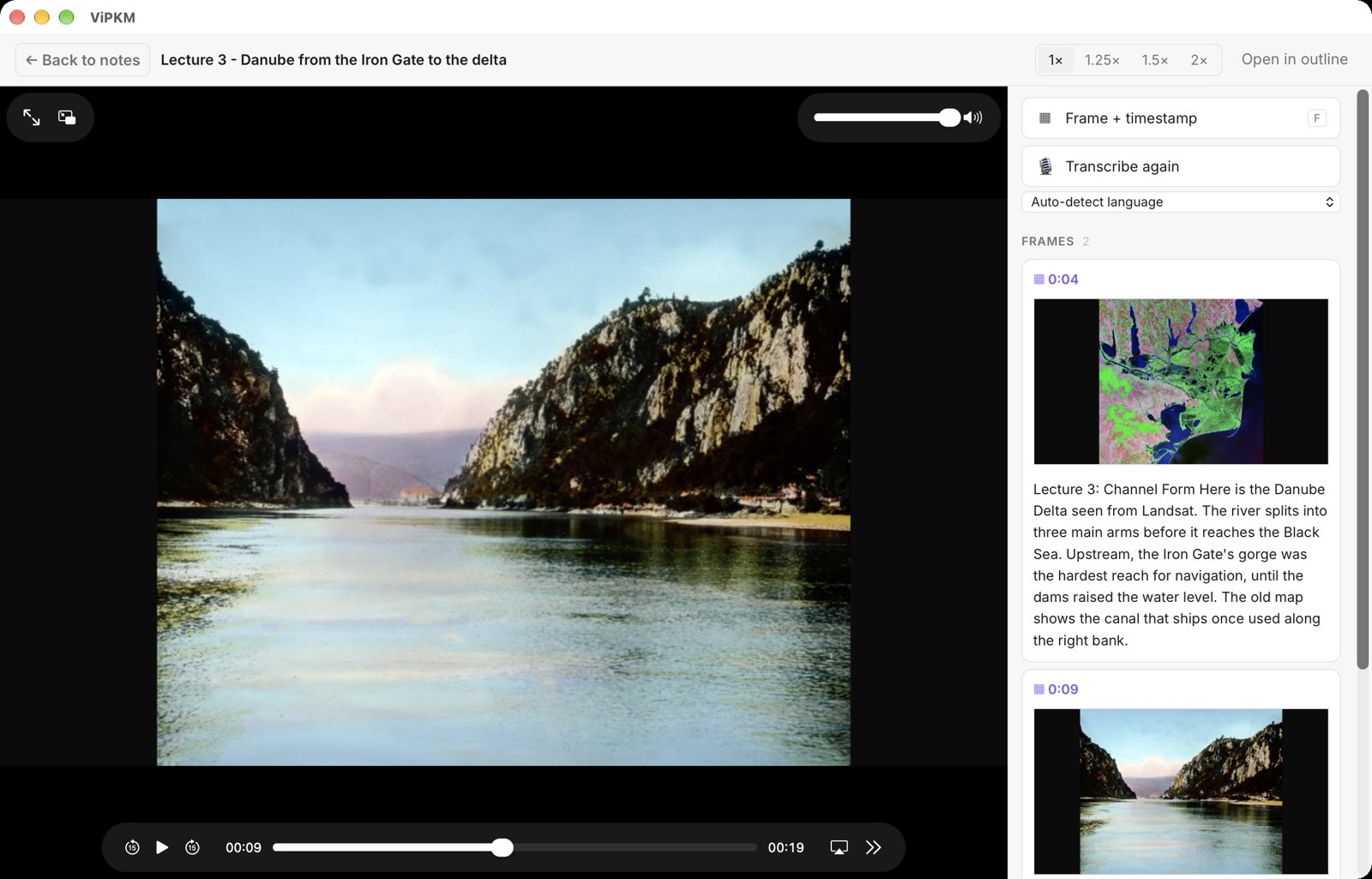
Video reader with a captured frame at 0:09 and a comment
Video — frames captured at 0:03 and 0:09, inside the on-device transcript.
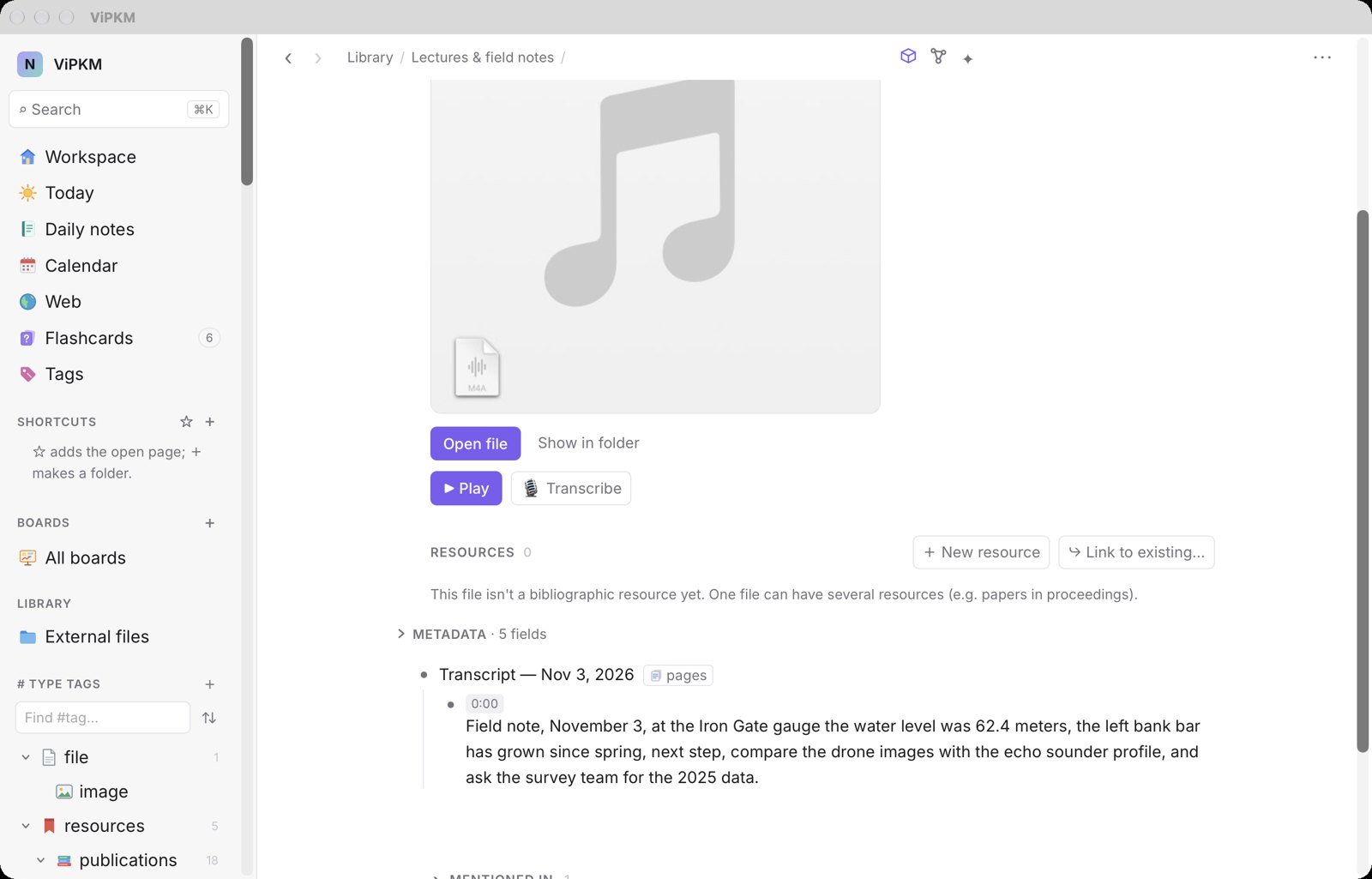
Voice note with its on-device transcript
Audio — a field note transcribed on the Mac.

Shown: a public-domain thesis (Naval Postgraduate School, 2011), the Wikipedia article “Iron Gates” (CC BY-SA 4.0), and a lecture clip and voice note made for this demo from public-domain images.

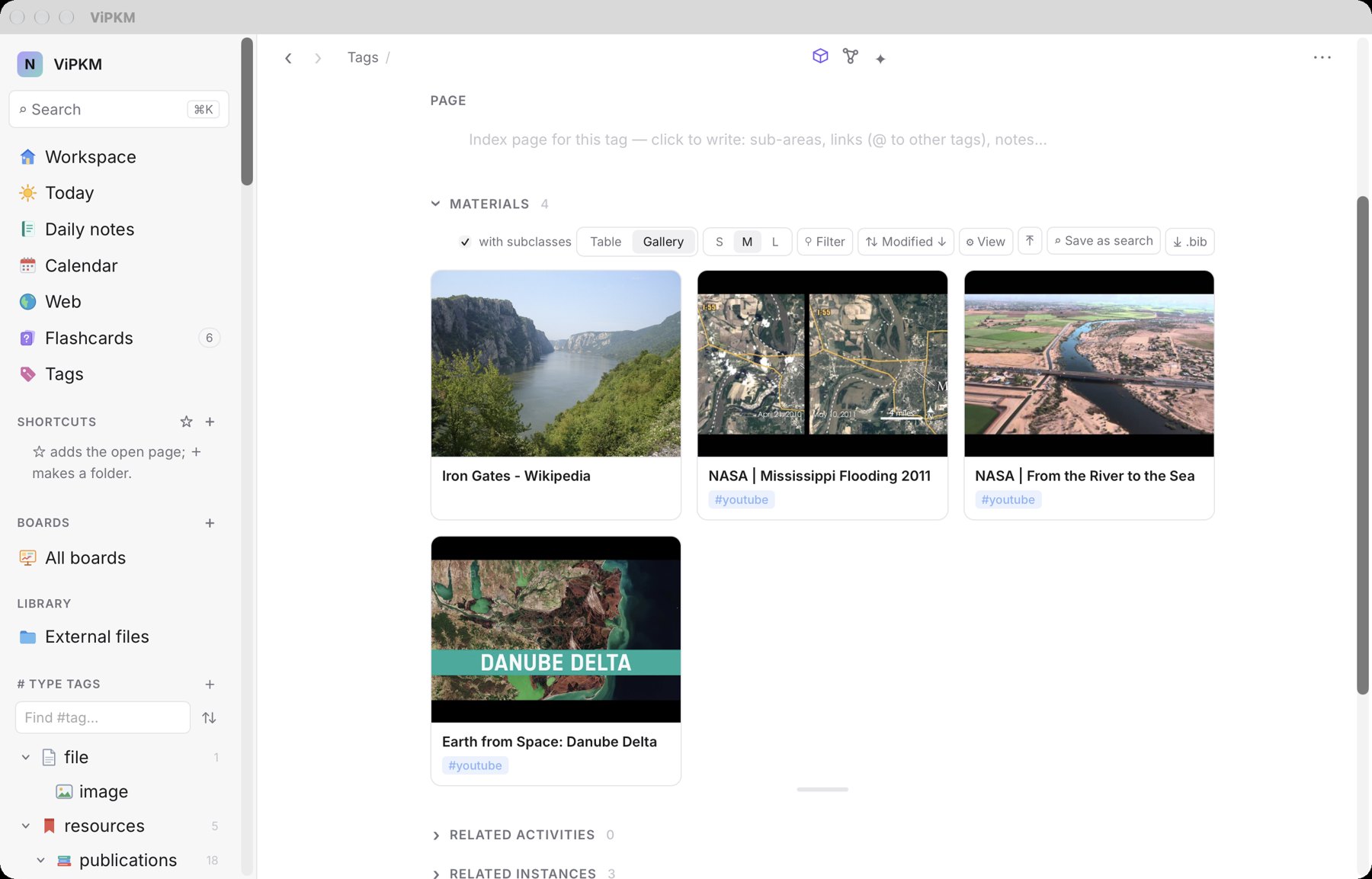
Saved online videos as cards with their thumbnails
Online videos saved as notes — with channel, date, duration and transcript — shown as a gallery. Videos: NASA Goddard and ESA (CC BY-SA 3.0 IGO).
AI, when you want it

Claude, working with your own notes — two ways

Inside the app with your own Anthropic API key (kept in the macOS Keychain, billed by Anthropic to you), or from Claude Desktop and Claude Code through MCP, with no key at all. Both are optional; everything else works offline.

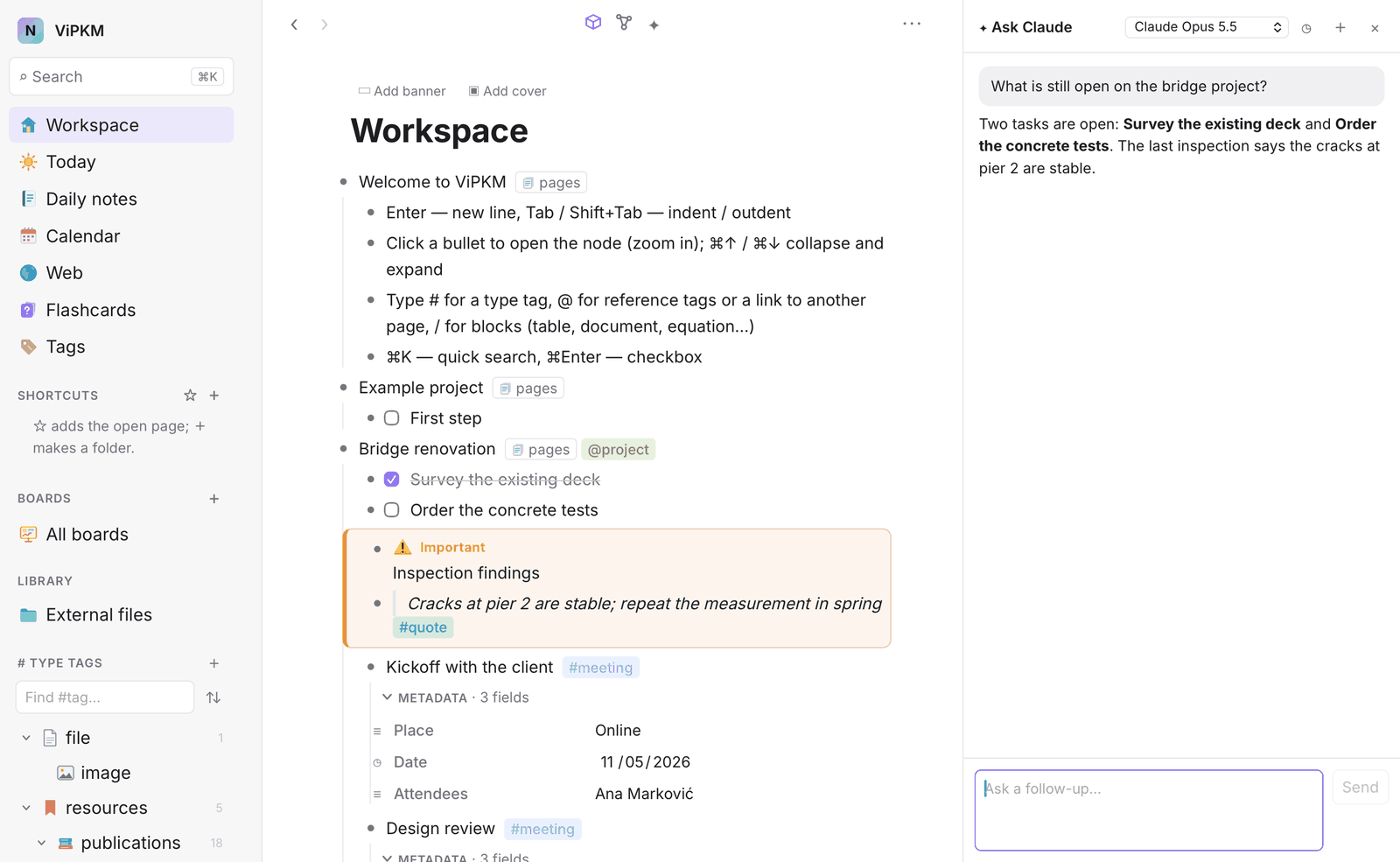
The Ask Claude panel answering from your notes
✦

Ask Claude

“What did I work on this week?” “Which tasks are open, and what for?” Claude searches and reads your pages, daily notes, tags and the text of your files, shows each step, and links what it mentions. It can add to a page only with your approval — it never edits or deletes.

🧠

Flashcards & identification

Claude writes questions from any block of notes, including its images, for spaced review. It can also identify a document when DOI and ISBN lookups find nothing, and pick “On this day” events for your daily note — always showing the cost first.

🔌

Claude Desktop & Claude Code — via MCP

Connect once and ask about your notes from the Claude app, with no API key. Claude can also write: new notes tagged #ai, in today's daily note or under a page you name — and “save this chat” copies a whole conversation word for word, your questions highlighted and Claude's drawings and web pictures kept as images. ViPKM picks up the new notes by itself.

A Claude chat saved into ViPKM: questions highlighted, answers nested under them, a picture kept
A chat with Claude, saved word for word: each question highlighted, the answer nested under it, Claude's drawings and web pictures kept.
AI flashcards · FSRS

AI flashcards: remember what you read

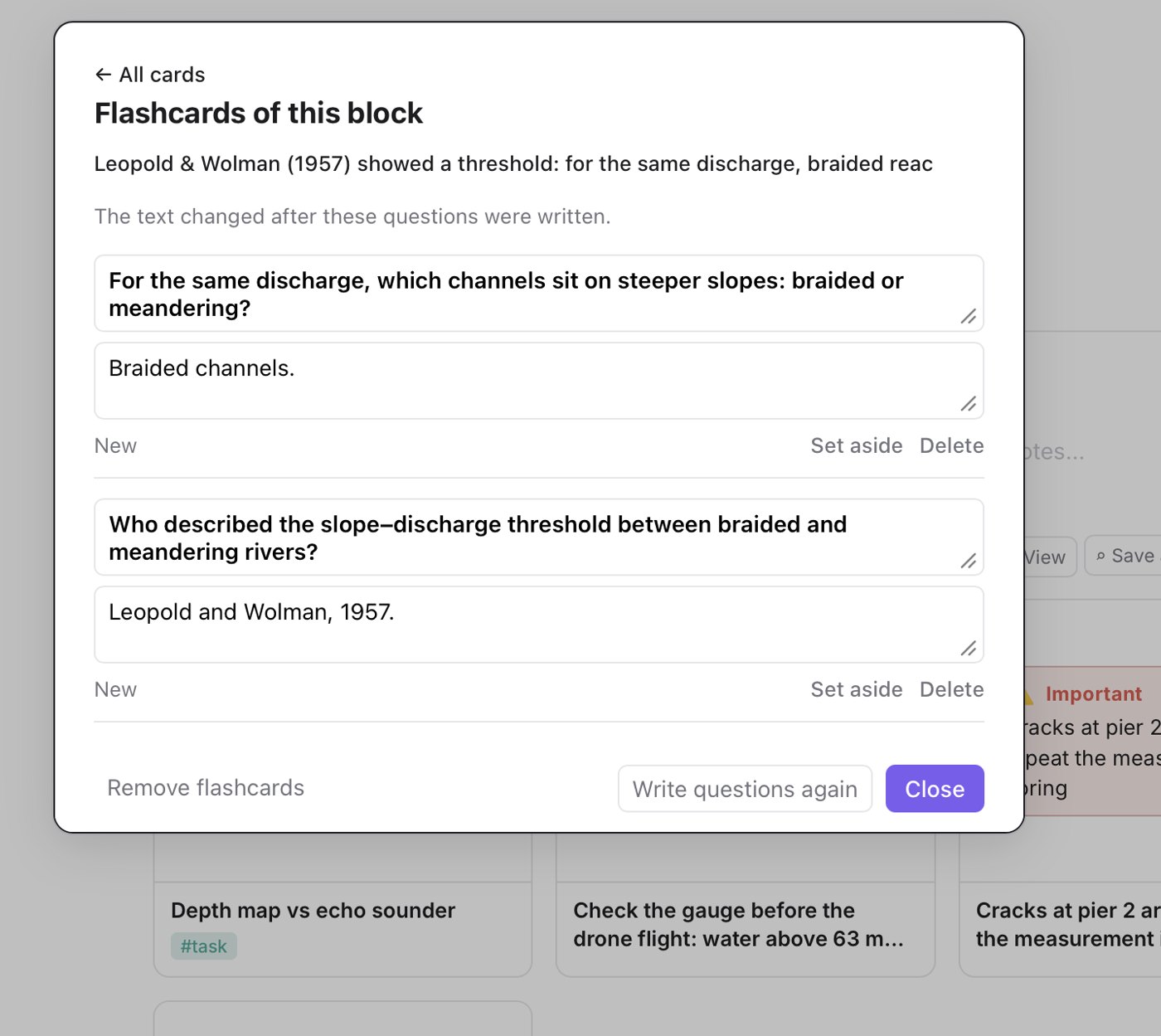
Mark a block of notes and Claude writes a few questions and answers from it — including from its images. You review them in a short daily session and rate each one: Again, Hard, Good or Easy.

Scheduling uses FSRS, a modern open-source spaced-repetition algorithm that is also used by other study tools. It estimates how stable your memory of each card is and how hard the card is, and brings the card back when your predicted chance of recalling it falls to the target you choose.

It rests on two well-established findings from memory research: practice spread over time is remembered better than the same practice in one sitting, and trying to recall is remembered better than reading again. That is why each card asks first and shows the answer after.

  • Edit, set aside or regenerate any card; see all your cards in one overview
  • Cards are stored with the note, so they sync with it
  • You set the target recall and daily limits
Flashcards of one note block, with All cards to go back to every block
Graph of linked pages

See how everything connects — with pictures

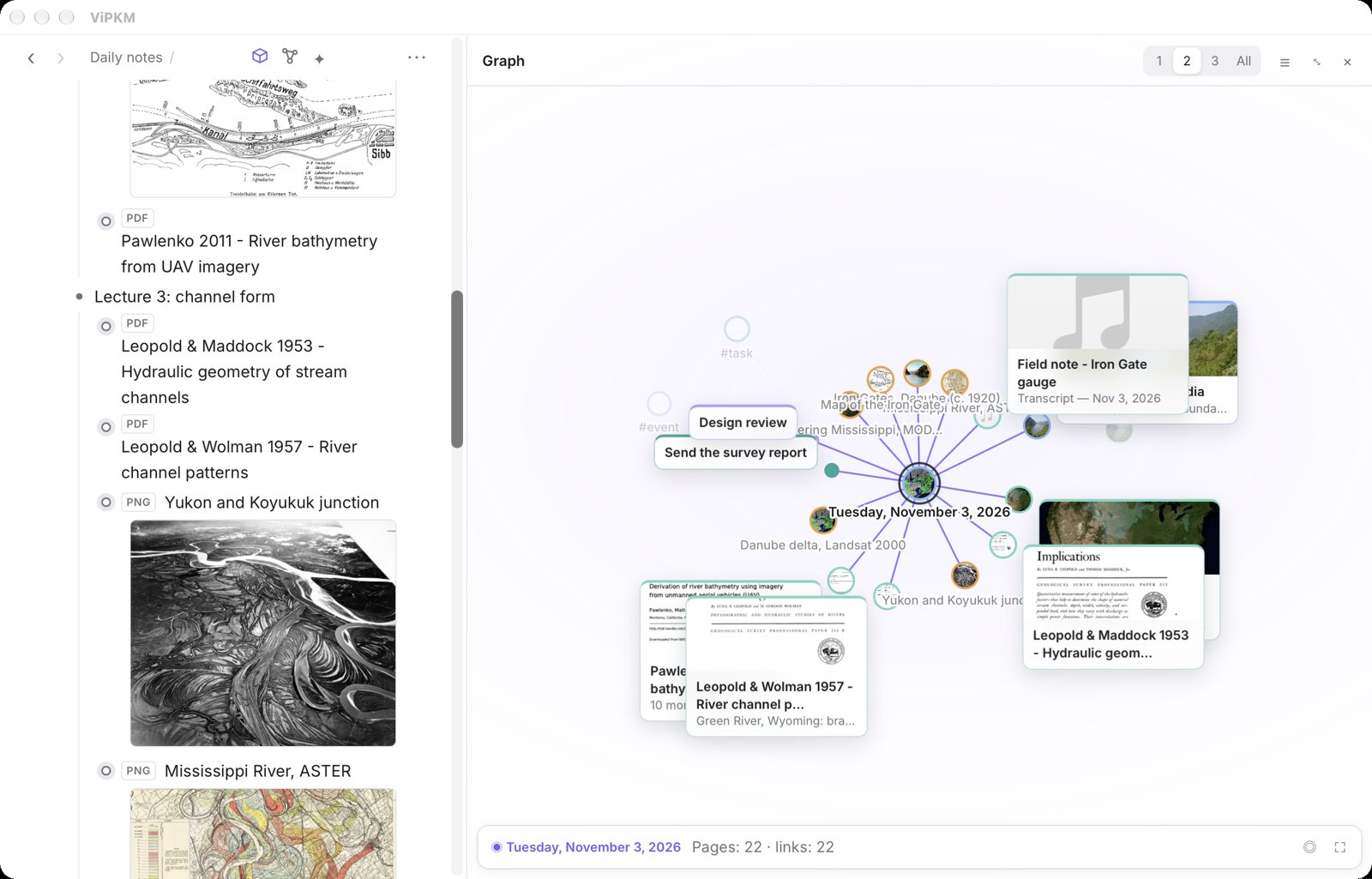
Open the graph beside any page and keep writing. Pages are dots and links are lines; the page you are on sits in the middle with its links lit. Turn on pictures and every dot shows the page's cover, the file's thumbnail or its first image — papers, maps and photos you recognise at a glance.

The graph beside a daily note, with pictures of papers, maps and photos on the dots

Images in the graph: public-domain USGS and NASA material.

Callouts

Frame what matters — a line and everything under it

Callouts are ordinary # types under #notes › #annotation: #quote, #highlight, #capture and #callout. Quotes from PDFs and web pages, and lines that start with >, are #quote; highlighted or coloured text makes a line #highlight; pasted images and PDF or web clips are #capture, with their caption under the picture.

  • Make your own frames — Important, Idea, Question — as subtags of #callout, each with a label, an icon and colours, and see a live preview
  • A callout holds several blocks, like a quote in Markdown: Enter opens a block inside the frame, Enter on an empty last block leaves it. Blocks can be text, an image, an equation or a table, aligned under the first line
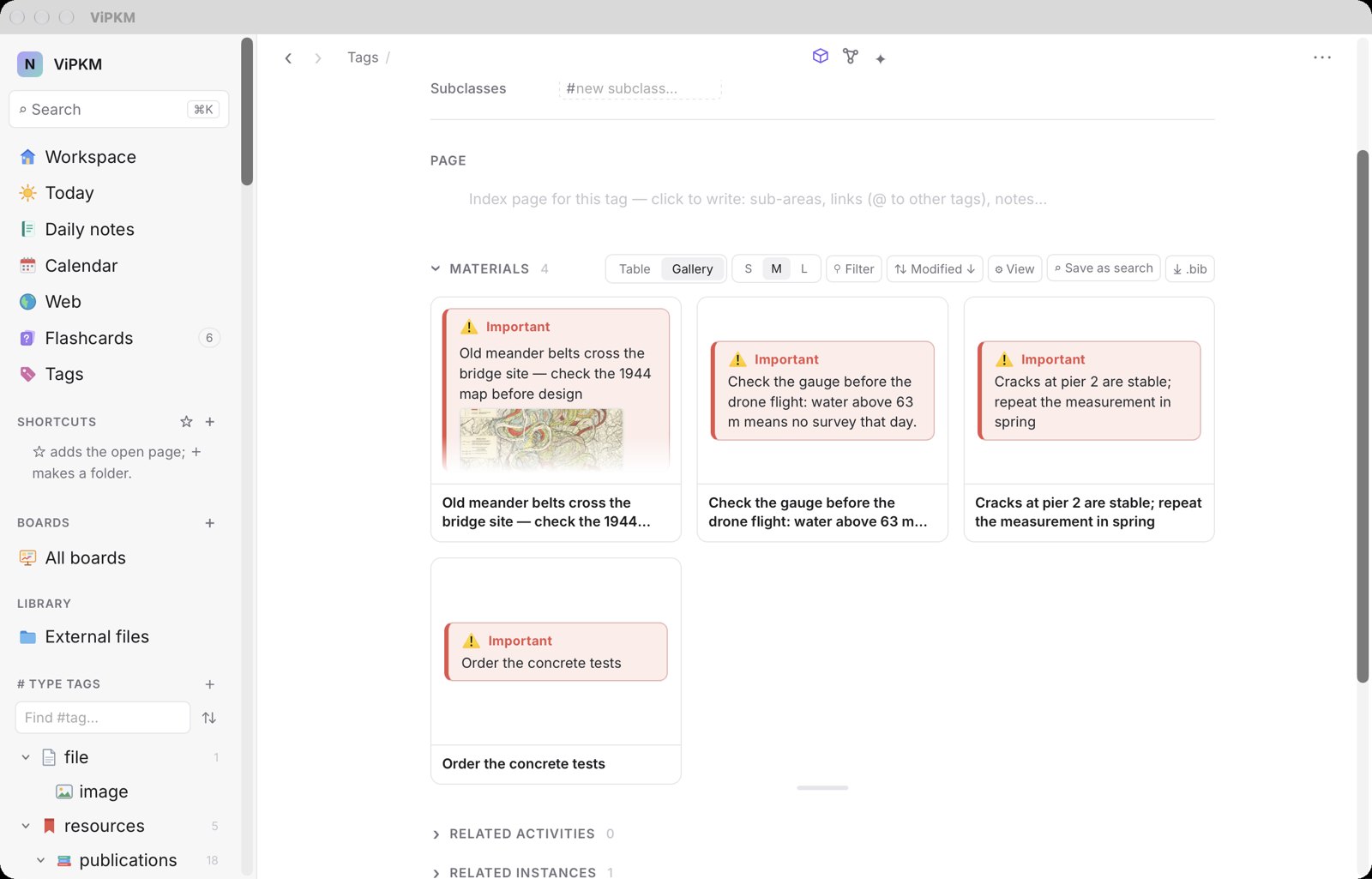
  • Every Important line is one click away on its tag page, where the gallery shows each frame with its blocks
An Important callout framed in the workspace outline, next to a quote
The Important tag page as a gallery: each card shows the frame with its blocks, one with a map picture
Every Important line in one place, framed as in your outline — and a frame can hold a picture under its text, like the 1944 meander map here.
Tags with fields

Tags that know what things are

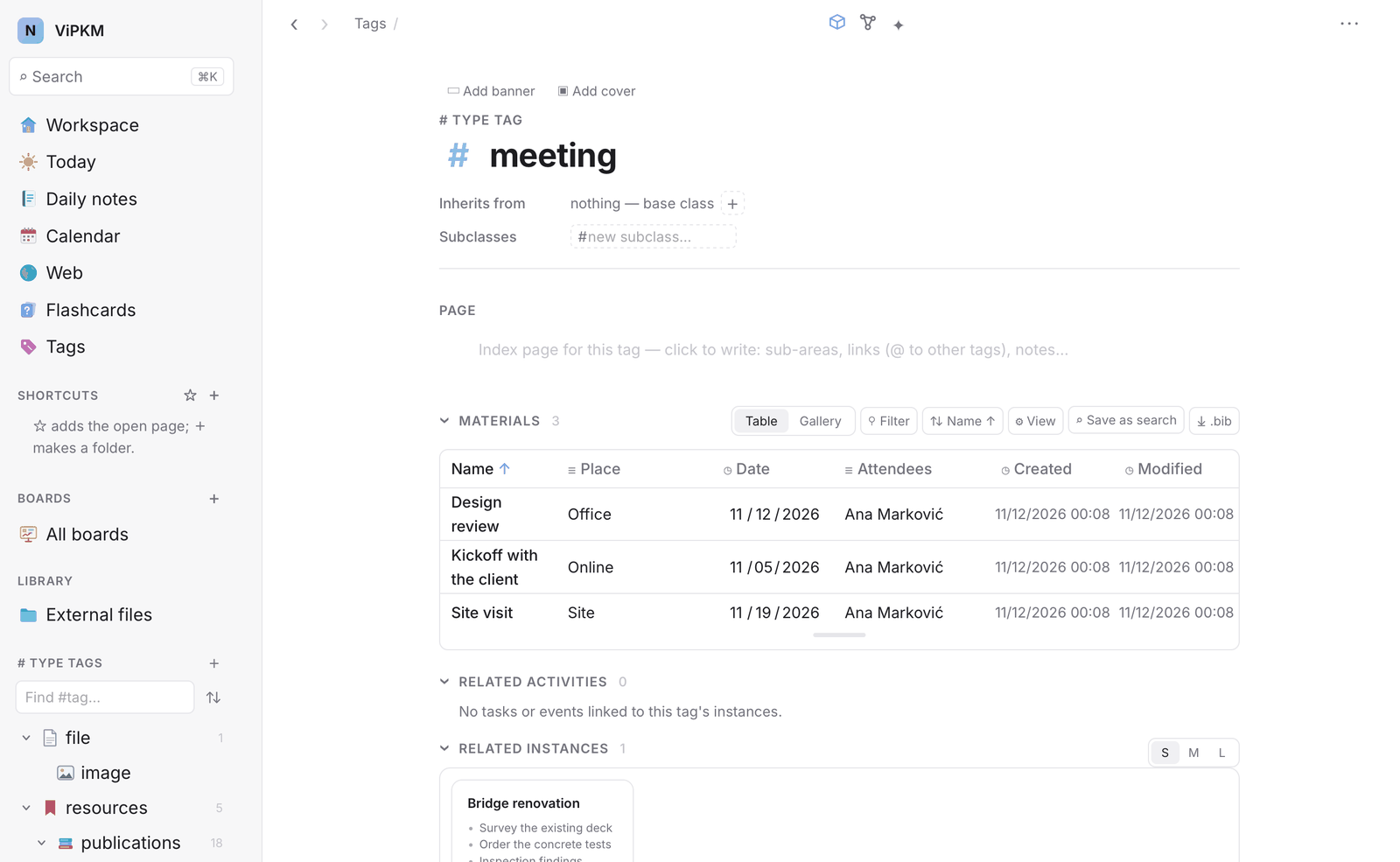
Type tags say what a node is — a #task, a #book, a #meeting — and give it fields such as dates, status or authors. Reference tags say what it is about. Tags form trees and inherit fields, so a new kind of thing is one line away.

  • Fields with values you can sort, filter and view as tables or galleries
  • Subtags inherit their parent's fields and instances
  • Mentioned in and Related show how everything connects
  • Give any tag an icon from a pack of about 150 multicolour icons — resources, sciences, hobbies, work, places, nature — or any emoji; it shows in the sidebar, before the page title and on chips. Built-in types and every resource type come with their own
A tag page with fields and instances
Daily notes & calendar

Days, tasks and a calendar that are notes too

Every day has its own page with its schedule at the top. Write without deciding where things belong — tag them, and they appear in the right places. Tasks and events are ordinary rows, shown in month, week and day views.

  • Type 14:00 Call or 10:00-11:30 Meeting to schedule
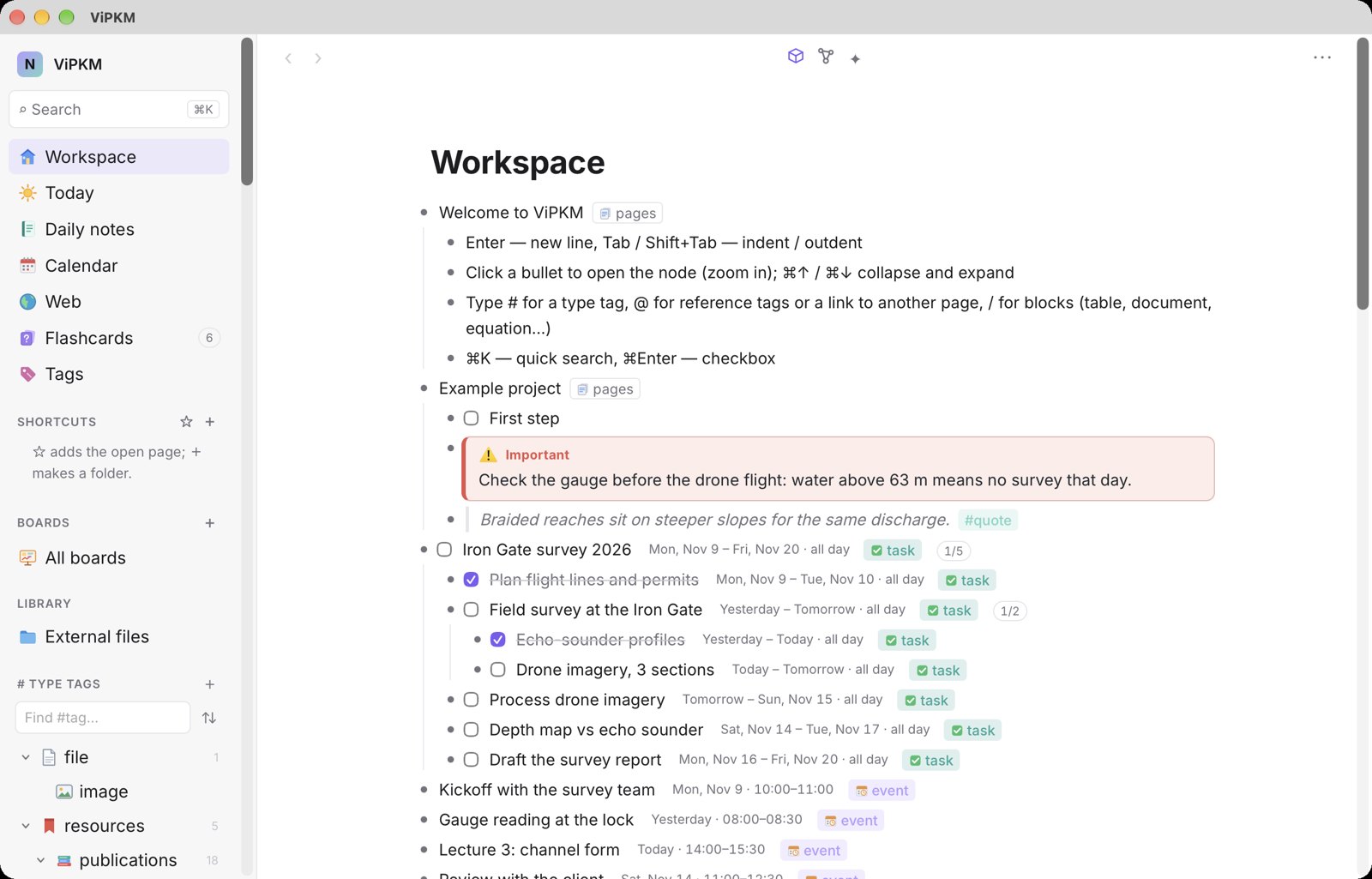
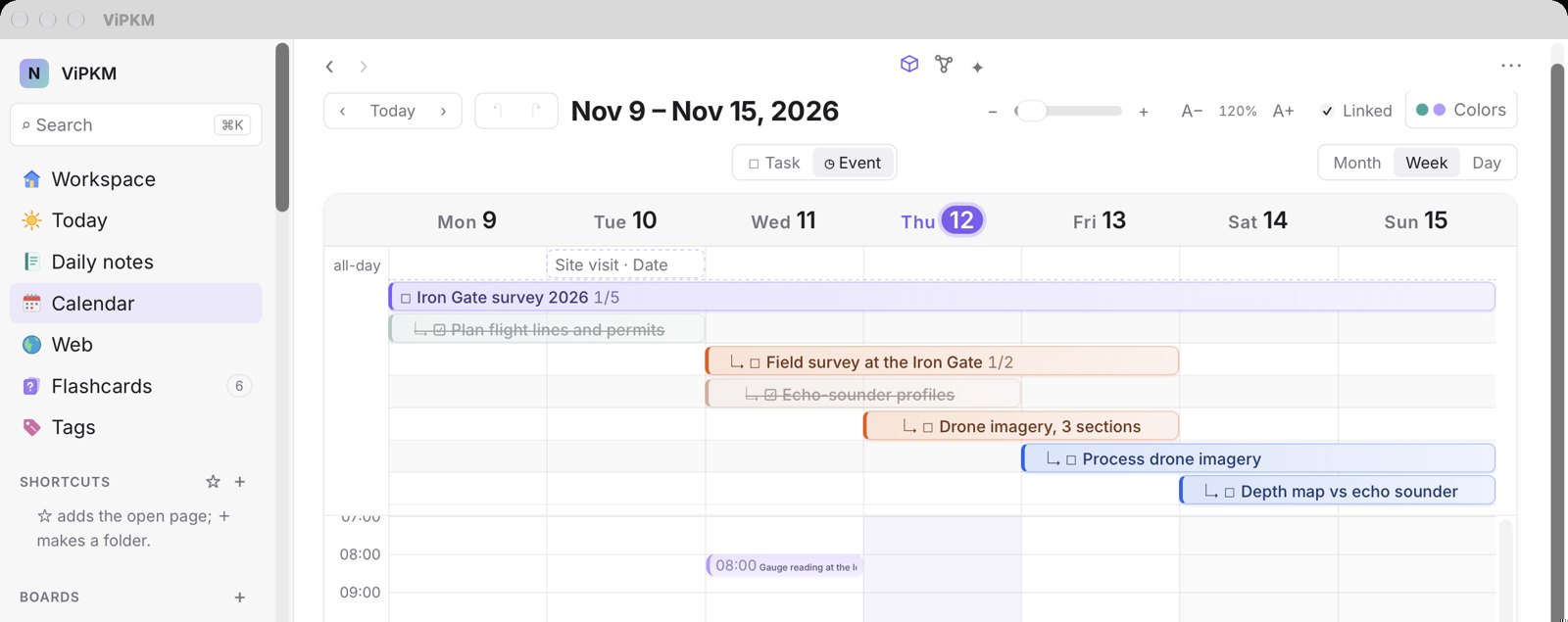
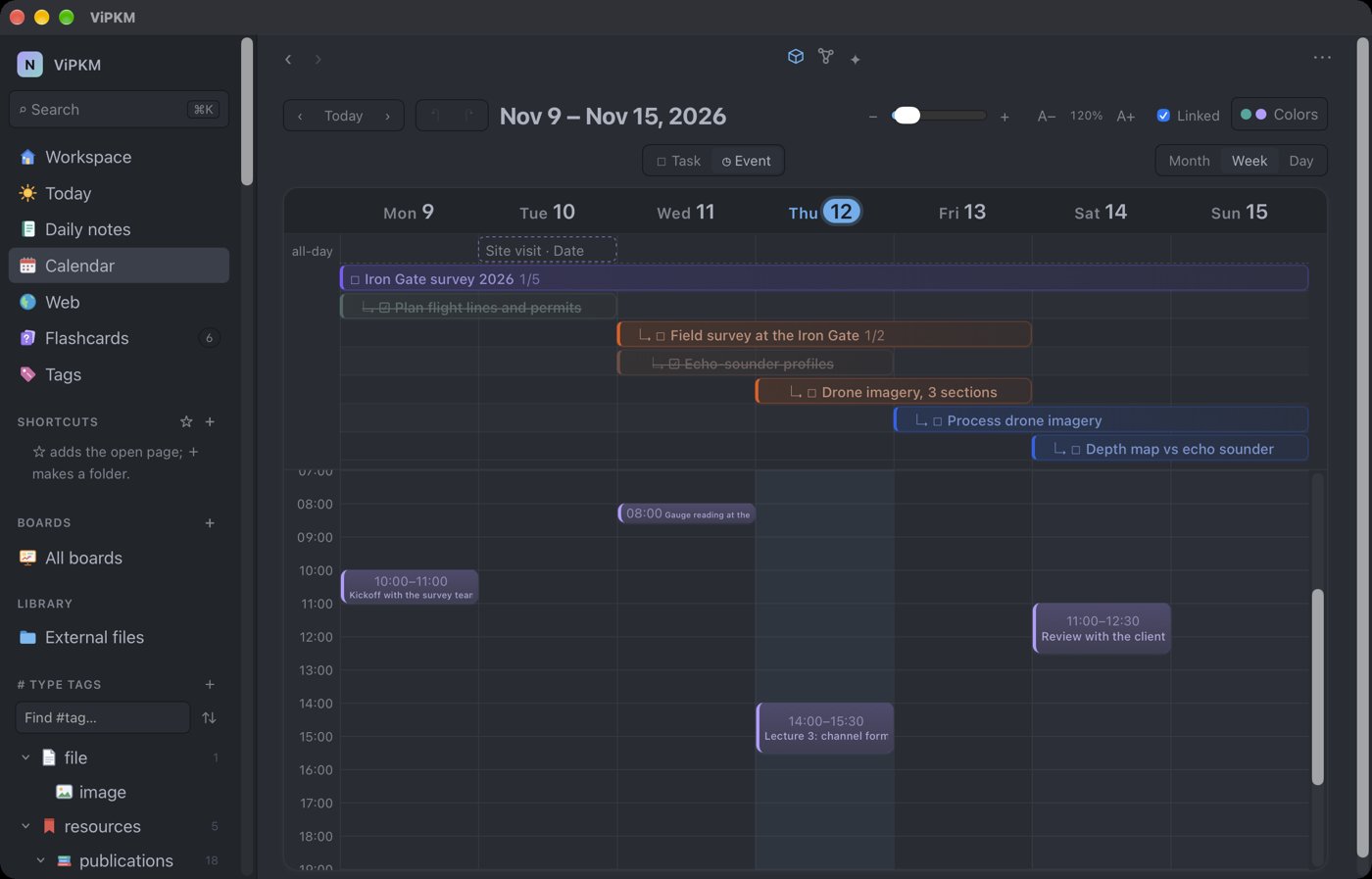
  • A project and its subtasks laid out as a Gantt chart, done steps struck through and the parent counting them (1/5)
  • Optional sync with your macOS calendars
Week view: a project and its subtasks as Gantt bars, done steps struck through, timed events below
Boards

Boards for thinking in space

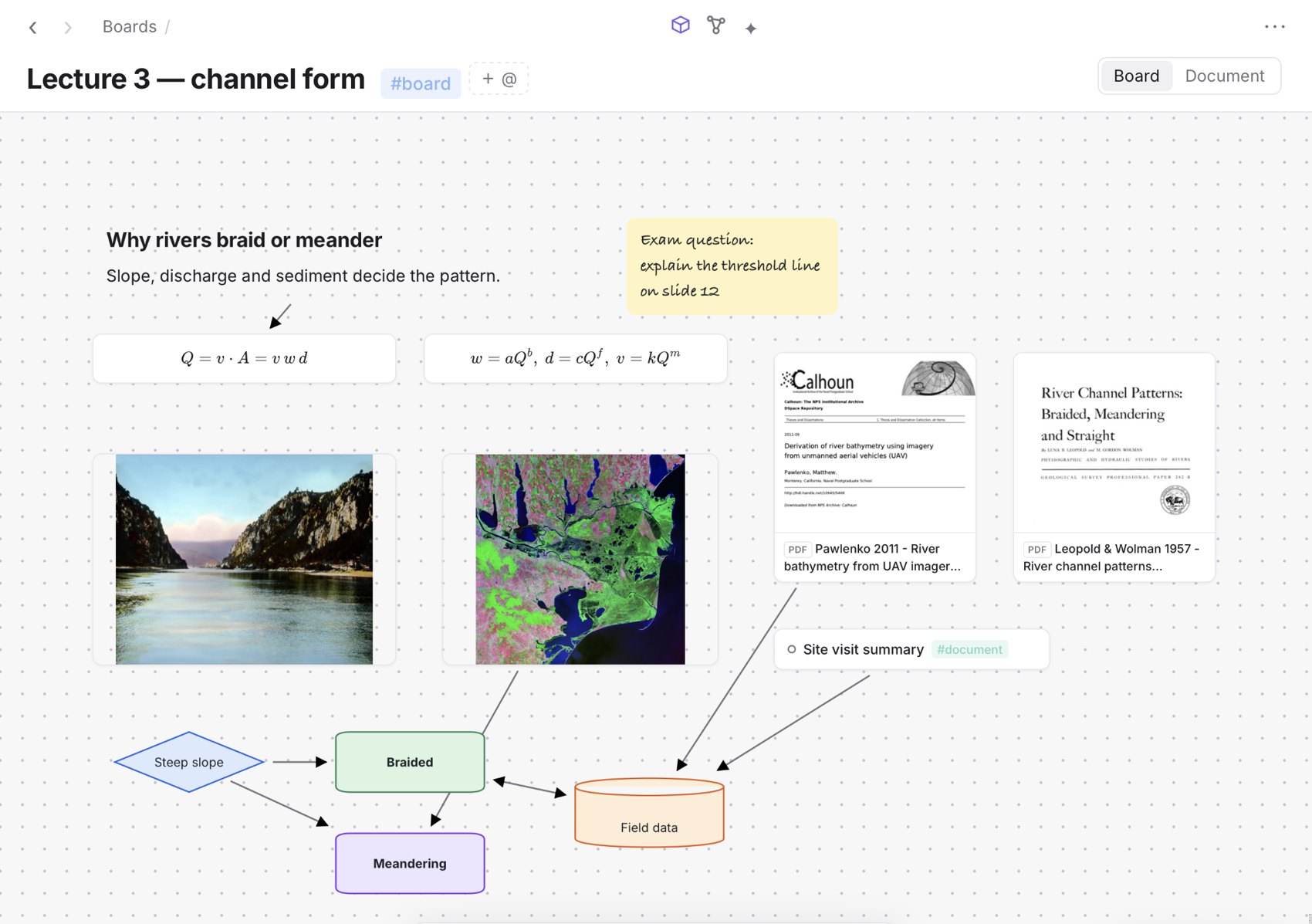
An infinite canvas for text, LaTeX formulas, images, shapes and your materials, connected with arrows. The same blocks also read as a single document, one below the other.

  • Text, sticky notes, LaTeX formulas, pictures and diagram shapes in your own colours and fonts
  • Drop PDFs and files from your library as cards
  • Keyboard tools for select, pan, text, formula and links
  • Every board is a node: tag it, link it, find it
A lecture board with a heading, a sticky note, two formulas, a photo, a satellite image, two papers from the library, a note card and a coloured diagram with arrows
Library & readers

A library you can read, mark and cite

Bring a folder from your drive into the app: each file gets a card, a cover and a page for notes. Books and papers become resources with proper citation fields, linked to their files.

  • PDF reader: quotes and clipped figures become notes, and highlights are also written into the PDF
  • Web and video readers: save pages, capture frames with timestamps, keep transcripts
  • On-device OCR makes scanned PDFs searchable
  • Import and link .bib files; look up records by DOI
The library of external files as cards
Works with your Mac

Finder, mail and other apps — in both directions

ViPKM doesn't wall your work off from the rest of the Mac. Jump from a note to the file in Finder and back again, link to any page from other apps, and gather files to send without moving the originals.

📂

Finder ⇄ ViPKM

From any file's page, “Show in folder” opens it in Finder. The other way round, right-click a file or folder in Finder → Services → “Open in ViPKM” jumps straight to its page.

🔗

Copy page link

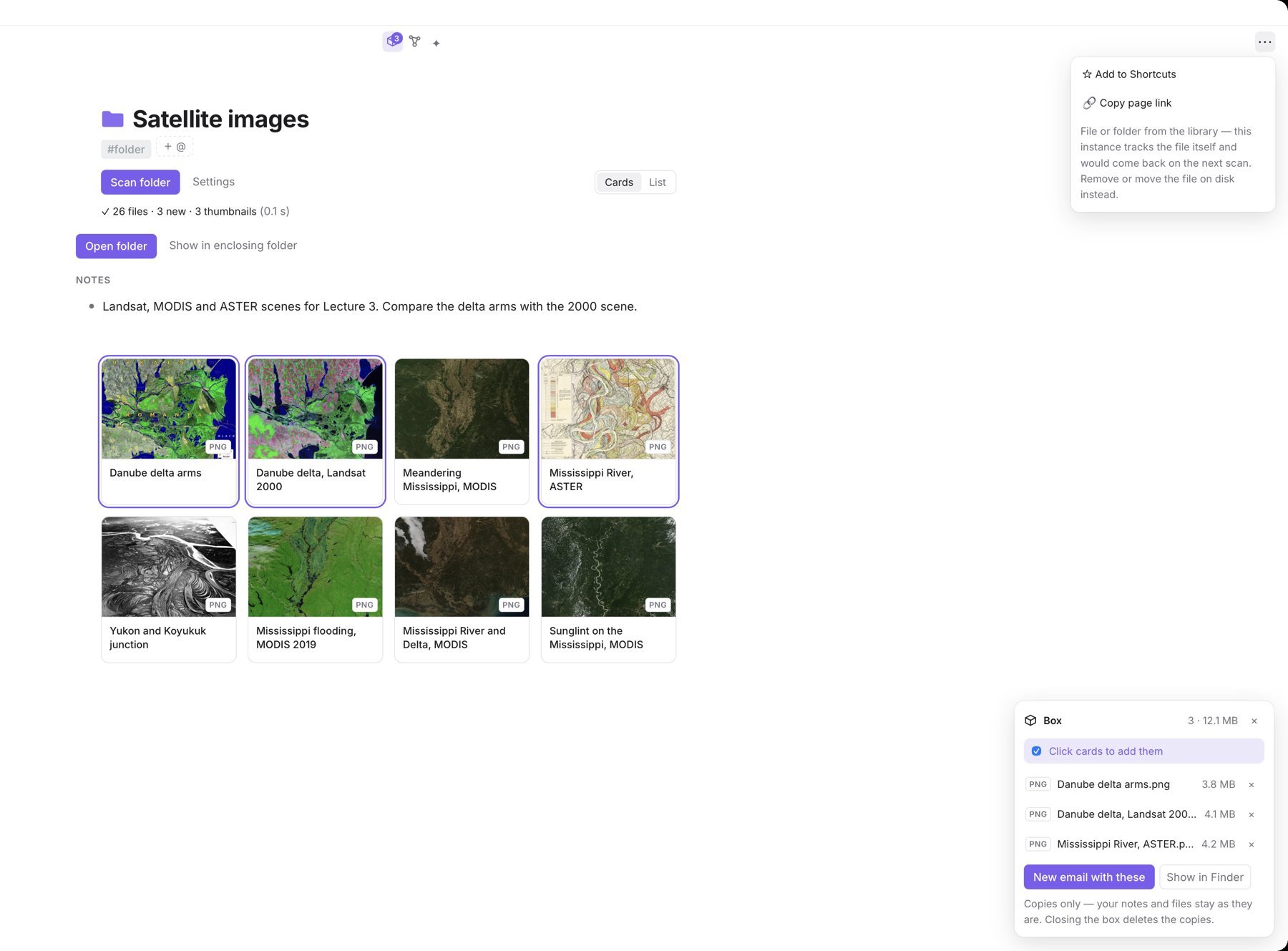
“Copy page link” in the page menu gives a vipkm://x-callback-url/open?node=… address. Paste it into a calendar, a mail, a task list or another note, and one click opens that exact page. Links can also open a PDF at an annotation or a page in the web reader.

📦

The box

Collect copies of files and notes — click cards in any gallery, or choose “Add to box” — then start a new email with all of them attached, or drag them out from Finder. Your originals stay as they are; closing the box deletes the copies.

Three cards in the box, the Box panel and the page menu with Copy page link
Three cards added to the box, ready to mail or drag out — and “Copy page link” in the page menu.

And much more

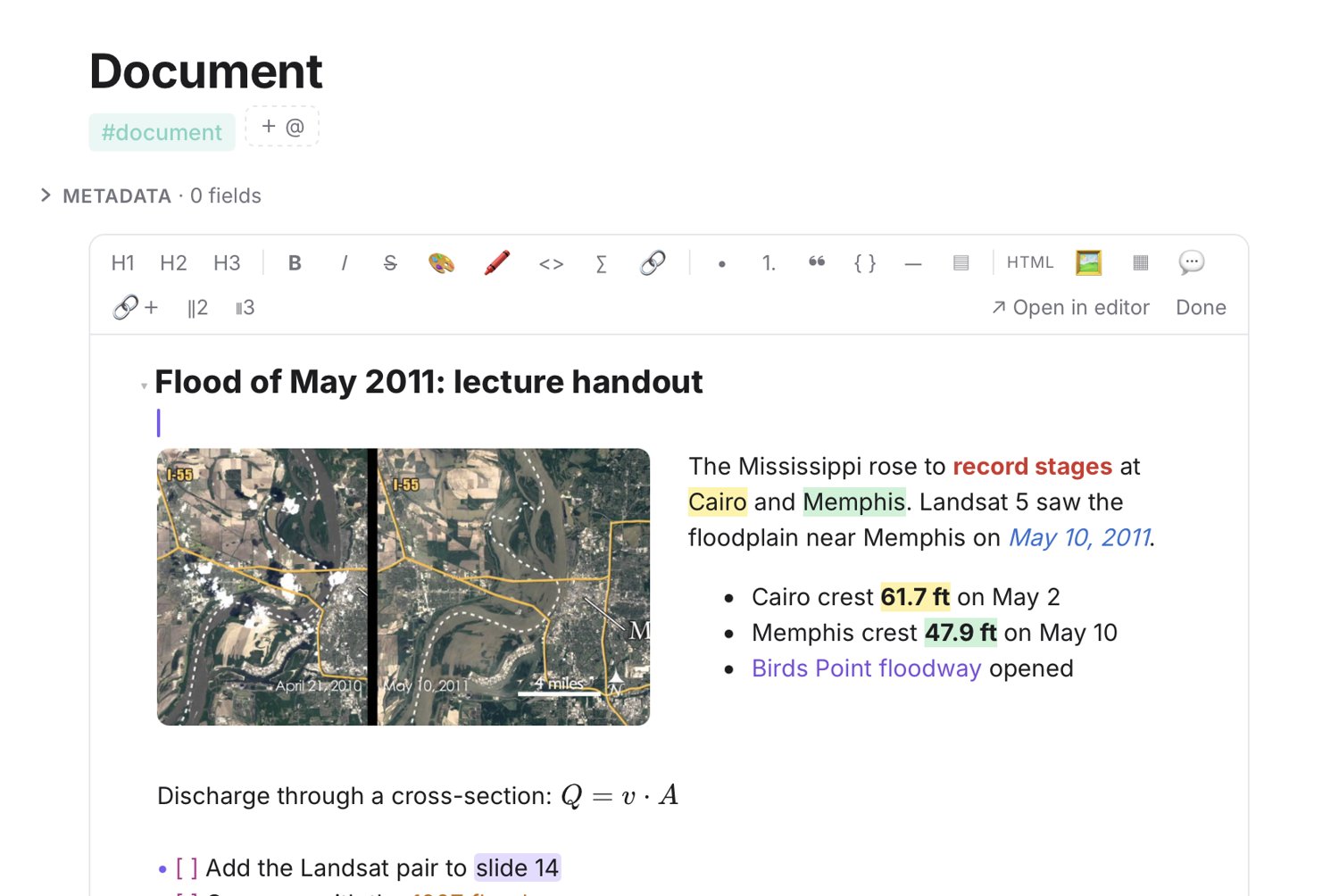
A document block with a heading, table, formula and checklist inside a daily note
A document inside the outline: a picture in one column and notes in the other, coloured text and highlights in several colours, formulas and checklists.

Documents inside the outline

When rows are not enough, a row becomes a full document with its own toolbar: headings, lists, quotes, code, formulas, tables, callouts and multi-column layouts. All documents are gathered under #document, and one click opens the text in your Markdown editor of choice.

Headings and quick edits

Type # to ##### and a space for headings H1–H5; select many lines and delete them in one step, with one undo.

Graph of linked pages

See your pages as dots and links in a panel beside the page, one to three steps out or everything, with previews and pictures.

Search everything

Names, notes, boards and the contents of your files — PDF, Office, Apple and OpenDocument formats — ignoring case, diacritics and script.

iCloud sync

Keep notes, tags, boards, images and library files the same on your Macs, through your own iCloud Drive. Off until you turn it on.

11 languages

The interface and help are available in English, Serbian, German, French, Spanish, Russian, Ukrainian, Chinese, Japanese, Arabic and Hebrew. Your notes stay exactly as you wrote them.

Make it yours

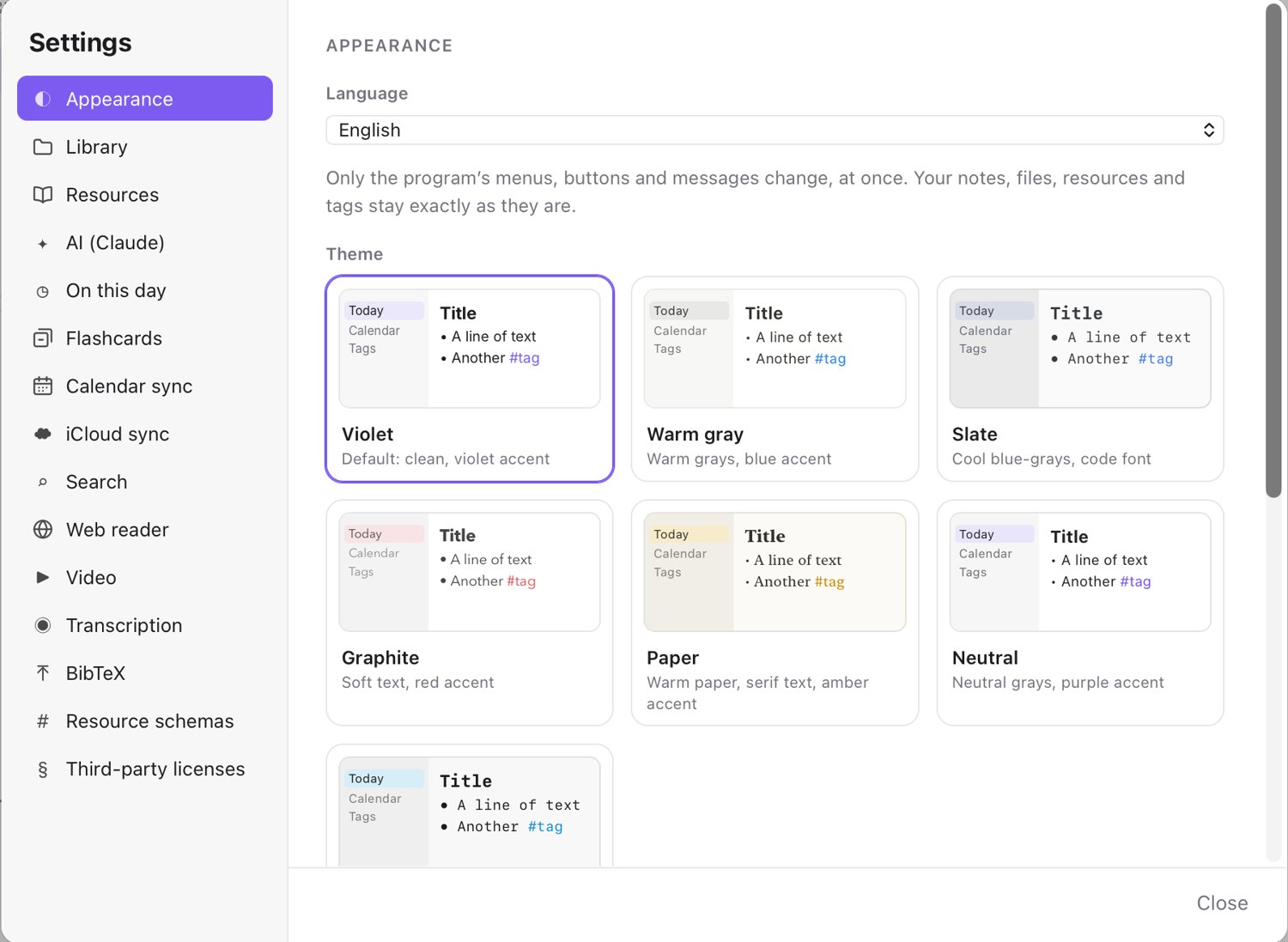
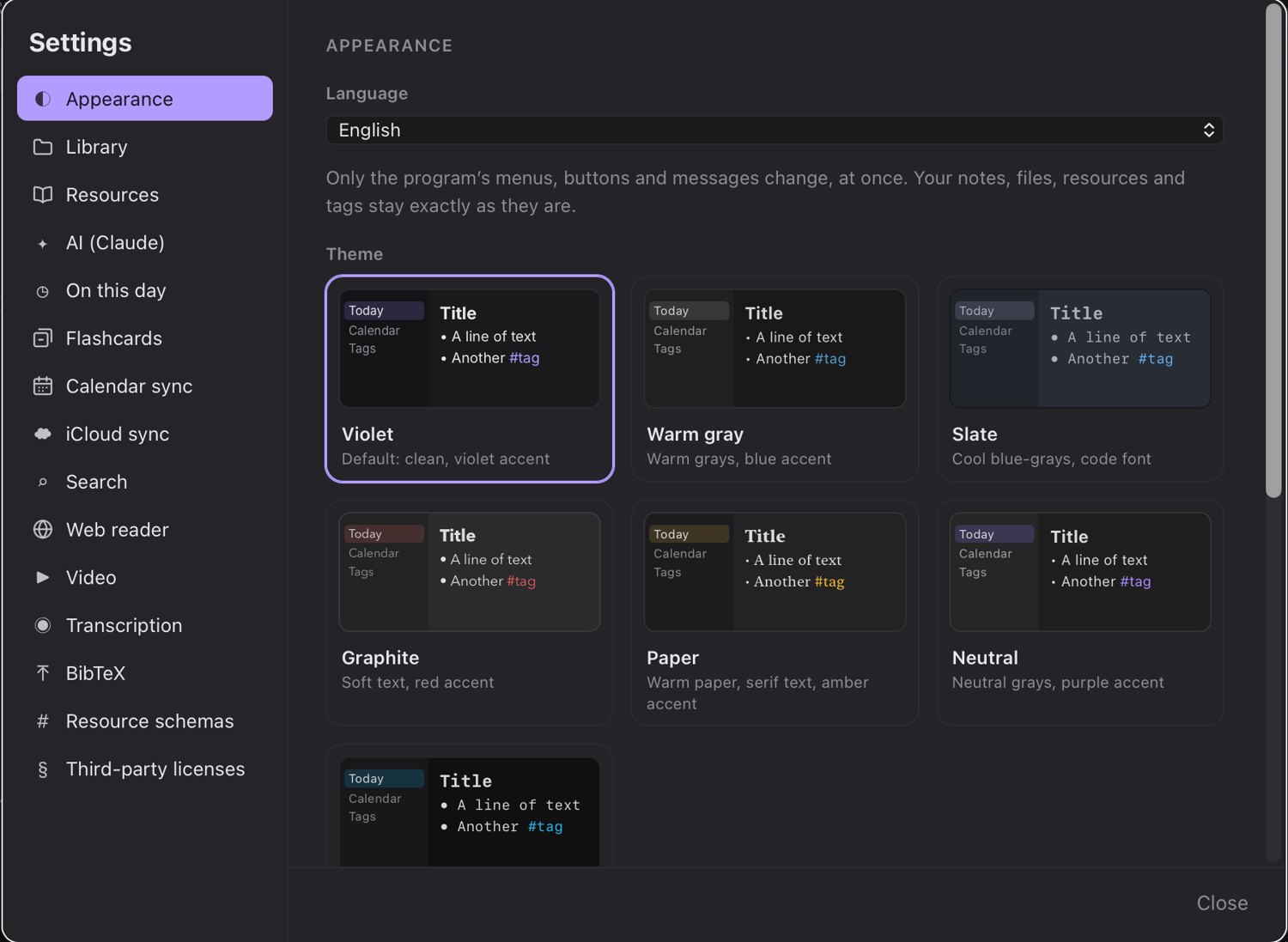
Seven themes, each in light and dark

Violet, Warm gray, Slate, Graphite, Paper, Neutral and Mono — each with its own colours and fonts, from serif reading text to a monospaced code look. Follow the system's light or dark mode, or pick one. Language, layout, outline style and editor width sit right beside them in Settings, with sliders for the sidebar's text size (12–22 px) and icon size (12–26 px). The sidebar itself is in colour: every place and tag with its own icon.

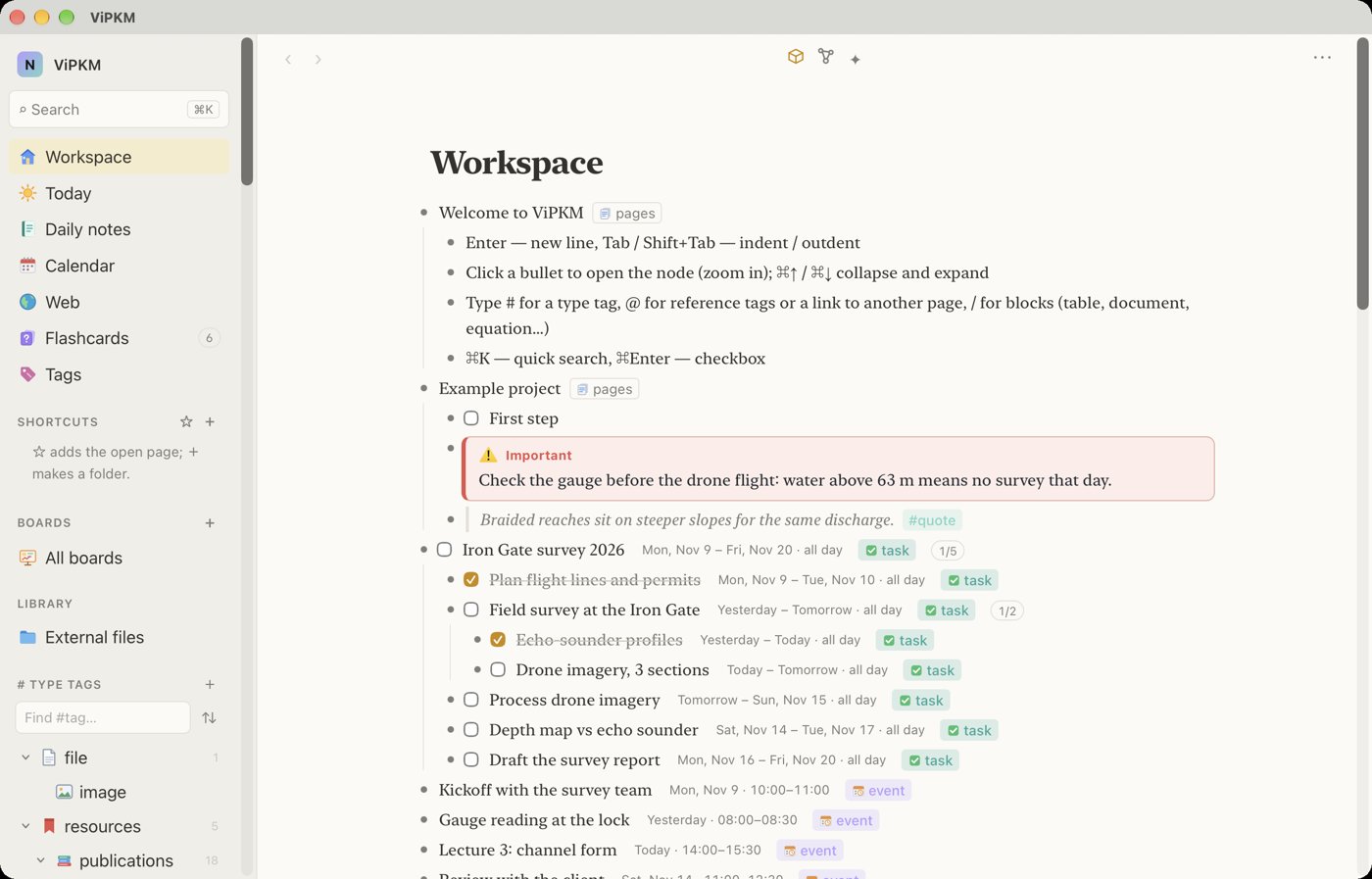
Workspace in the Paper theme, light
Paper, light — warm paper and serif text.
Calendar in the Slate theme, dark
Slate, dark — cool blue-grays and a code font.
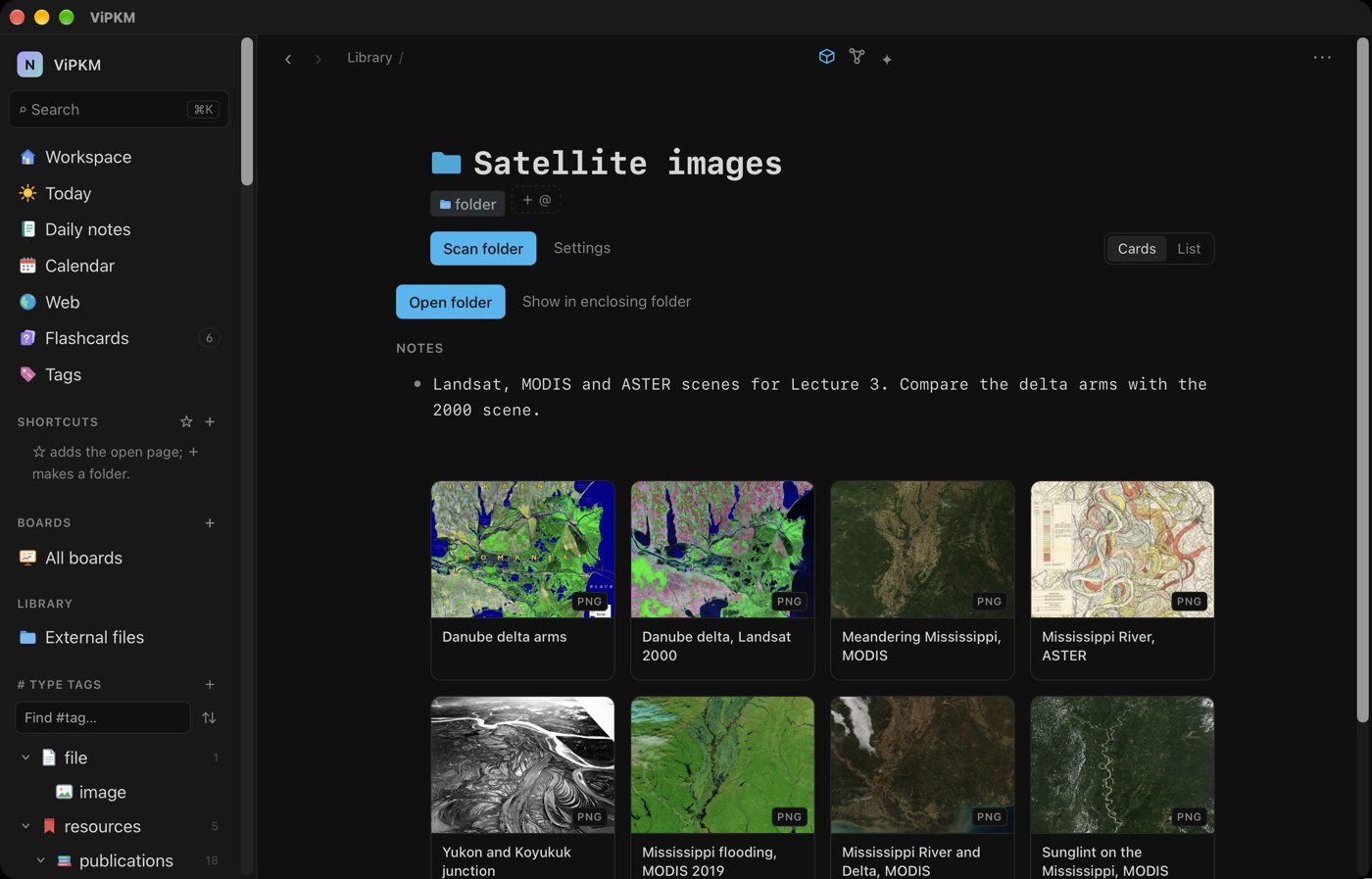
Folder gallery in the Mono theme, dark
Mono, dark — minimal and monospaced.
Pricing

Simple pricing

Pay once, use it for good. No subscription and no account.

Free trial

0 € for 14 days
  • Every feature, no account needed
  • Your notes stay yours when the trial ends

Payments, taxes and invoices are handled by Paddle, our Merchant of Record. Prices may include VAT/sales tax depending on your country. Features that use Claude need your own Anthropic API key; that usage is billed by Anthropic, not included in the price. See the refund policy.

Details

Requires
macOS 13 Ventura or later, Apple silicon
Coming later
Planned: a full Windows version, and companion apps for iPhone and iPad. There are no dates yet, and a license bought today covers the Mac app.
Your data
Stored on your Mac. Library files are read in place; scans never change them.
AI
Optional. Ask Claude, flashcard questions and resource identification use your own Anthropic API key; usage is billed by Anthropic.
Sync
Optional, through iCloud Drive. Settings stay on each device.